Zap Viewer — User Manual
A Picture-Viewer-style render history for Blender. Every render you make — an F12 still or a whole animation — is saved to disk on its own and added to a history list you can label, replay and compare. A good test render is never silently overwritten.
30-second version
- Install it. There is nothing to configure.
- Render (F12). The Zap Viewer window opens by itself.
- The moment the render finishes it is saved to disk and added to the history list. No button to press.
- Click any entry to see it again. Pick two and compare them A/B.
- Close Blender, reopen the file — the history is still there.
Requirements
Blender 5.0 or newer. Verified on 5.0.1, 5.1.2 and 5.2.
Installing
- Edit › Preferences › Get Extensions › the drop-down in the corner › Install from Disk…
- Pick
zap_viewer-2.9.0.zip. - That is all. The Viewer opens on your next render.
Everyday use
Just render
Press F12, or render an animation. The Viewer window opens and shows the live Render Result while Blender works, then swaps to the finished entry. A still becomes one Still entry; an animation becomes one Sequence entry — a dated folder of frames, not one entry per frame.

Look at an older render
Click it in the history list. A Still opens full size; a Sequence is ready to scrub and play.
Label it
Type into the entry's name field — "v3 key light warmer", whatever you will recognise tomorrow. Labels are saved with the .blend.
Compare two versions

Select one and press Set A, select another and press Set B, then Compare. The Viewer splits between them with a wipe you can drag. Zap Viewer refuses to compare two different resolutions rather than stretching one to fit — that would falsify what you are looking at.
Screen reference
The Viewer window
Zap Viewer lives in its own window, like C4D's Picture Viewer, rather than buried in a Properties tab. One window per session: the next render reuses it. The big view fills the window and the history list is docked in the sidebar (press N if it is hidden).
Transport bar
Along the bottom: jump to start, step back, play/pause, step forward, jump to end, loop, and playback settings. The frame field shows where you are; the Start/End fields narrow playback to a range.
Playback is separate from your scene. Playing a render here does not move the scene's playhead, so your 3D viewport does not animate along with it. Arrow keys scrub the viewer, Shift+arrows jump to the ends of the play range, and Space plays — but only inside the Viewer window.
Tabs

- History — the list, with thumbnails, labels and times.
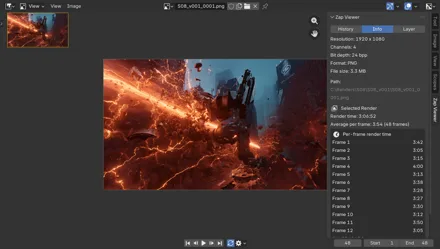
- Info — resolution, render time and, for a Sequence, how long each frame took (see below).
- Layer — what layers the shown image has, and a note about multilayer EXR (see "Not in this release").
Navigator
A small overview of the whole image in the top-left corner, with a rectangle showing where your current zoom sits inside it.
Refresh / Import / Remove / Clear
- Refresh — rescan the history folder for renders not yet listed.
- Import — add renders from any other folder (see below).
- Remove — take the selected entry out of the list.
- Clear — empty the list.
Remove and Clear do not delete your files. They only stop tracking them. Even Remove's "Also delete files" option refuses to touch anything outside your history folder — an imported folder is never deleted.
Importing renders from a folder
Press Import and pick a folder to bring in renders Zap Viewer did not make: an older project, a render farm's output, a folder a colleague sent over.
- Nothing is copied or moved. The entries point at the files where they already are.
- A flat run of numbered frames —
frame_0001.png…frame_0250.png— comes in as one Sequence, not as 250 separate stills. - Importing the same folder twice adds nothing the second time.
Per-frame render times

Select a Sequence and open the Info tab. Zap Viewer records how long each frame took while it rendered:
Average per frame: 6s (48 frames)

Per-frame render time
  Frame 12        41s
  Frame 7         18s
  ...
  slowest 12 of 48 frames
The slowest frames are listed first, because "which frame cost me" is the question this answers. It updates live as each frame lands, so you can watch it during a render.
Where files go, and staying put
Zap Viewer keeps its files in a folder it calls the history store.
Out of the box that is a render_history folder next to your
.blend, and you can move it in Preferences > Add-ons > Zap Viewer:
beside the project, one folder away from your projects with a subfolder per
project, or anywhere you pick. You can rename the folder there too. A
History Folder set on the scene itself still wins over all of it.
Names are timestamps — 20260717_143022.png for a still,
20260717_143530/ for a sequence folder.
Animation frames: copy, or point at them
Blender has already written your animation to your output path, so Zap Viewer does not have to write it again. Keep a Copy — the default — saves a second copy into the history store, and nothing you render later can change what that entry shows. Use Output Files leaves the frames where Blender put them and simply points at them: no duplicate, but rendering over those frames again changes what the entry shows, and the row is marked Changed when it does. An F12 still is always saved either way, because Blender writes no file for one.
Packing into the .blend
Set the store to Pack into the .blend and stills are embedded in the project file itself, so it travels as one file with nothing beside it. The .blend grows by the full size of every still and every save rewrites all of it, so this is for carrying a project, not for saving space. Animation frames cannot be packed and stay at your render output path. Packed renders arrive locked, because there is no file on disk to fall back on.
Because every entry is a real file — or a real record of one — quitting Blender loses nothing. Reopen the .blend and the list is rebuilt, thumbnails included.
Zap Viewer does not touch your render settings, Blender's own render slots or the sequence editor, and it never opens a window in a headless render — so it is safe on a farm.
Keeping the folder from filling up
Test renders pile up. Delete After, in the panel's Storage Settings, removes entries past a number of days you choose. It ships off, and 0 means never.
It is deliberately narrow about what it will delete. Only files Zap Viewer wrote into its own store are removed; your own renders — anything referenced, imported, or simply sitting in the folder — are dropped from the list and left on disk. It never touches a locked entry or the one you have selected, and it never runs during a background render, so a farm node opening your file cannot clean your history.
Click the padlock on any row to keep it, or use the lock and unlock buttons beside the list to do the whole list at once. Delete Unlocked does the same job immediately, ignoring the age setting, and Remove Packed takes Zap Viewer's embedded renders back out of the .blend — only its own, unlike Blender's Purge, which cannot see them at all. Every one of these tells you the exact count and size first, because none of them can be undone.
Not in this release
Multilayer EXR history — coming soon
Renders save and replay normally, but a saved still is flattened to its combined result, so its passes are not kept in the history copy. Blender writes no file at all for an interactive F12 still, so Zap Viewer has to produce one from the Render Result, and every route available for that discards the layers. If you need the history copy to carry passes, render to single-layer EXR for now. The Layer tab says the same thing in the interface rather than letting you find out later.